
This article explains how to manage user lifecycle actions in the platform. Use the sections below to learn about each action.
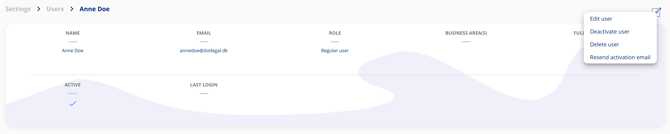
Deactivate a User
Deactivating a user immediately removes their access to the platform. They will still appear as the responsible party on any assigned records, and the platform will display validation errors prompting you to reassign those responsibilities. Deactivation is the recommended first step when someone leaves your organisation — it is reversible and does not affect any data.
Delete a User
You can only delete a user who has no responsibilities assigned to them. Before deleting, follow this process:
- Deactivate the user (see Deactivate a User above).
- Transfer all responsibilities assigned to the user to another active user. For step-by-step instructions, see Transferring Responsibilities Between Users.
- Once the user has no remaining responsibilities, select the user and choose Delete.
Reactivate a User
To reactivate a user, go to the user list, locate the deactivated user, and change their status back to active. Once reactivated, the user can log in and access the platform as before.