
If your PACTIUS environment is integrated with your Microsoft 365 solution, you can create users in PACTIUS yourself.
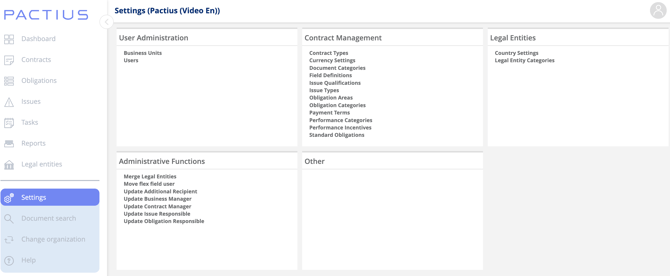
The possibility to create users can be found in the "Settings" menu option.
There are two ways a user can be granted access to PACTIUS:
- Access request from the user which is approved by the administrator
- Access created by the administrator
Note: It is important that you only create the user once. So, if you have created the user, you must not simultaneously approve a request for access and vice versa.
Method 1: Access via access request from the user
A user can access PACTIUS at https://app.pactius.com
If the user does not have an account in PACTIUS, the user can request access via the screen below:
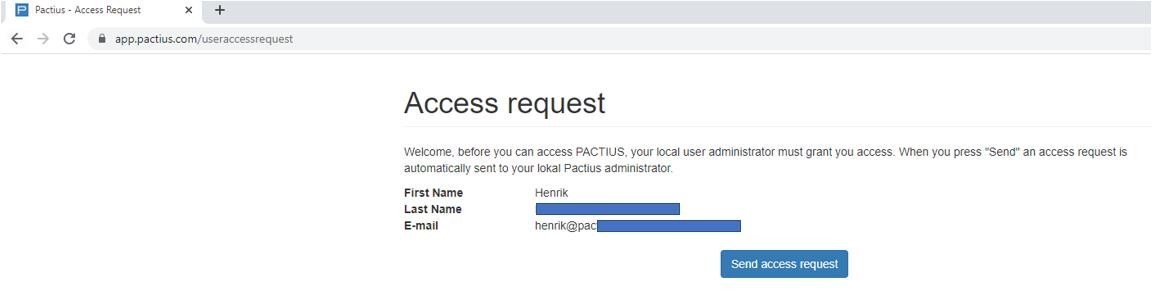
The local administrator will then receive an e-mail and can go in and approve the access.
Once the administrator has approved the access, the user must be assigned to one or more business units. To do this, navigate to Settings > Users and open the specific user's profile.
Method 2: Access created by the administrator
As an administrator, you can create users in advance, before their first login. To do this, navigate to Settings > Users in the left-hand menu.
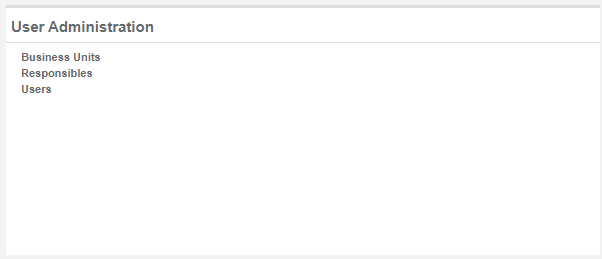
Then click on the "Add" button in the top right-hand corner.

The below depicted pop-up window will now appear where the administrator has to fill in the user's details:
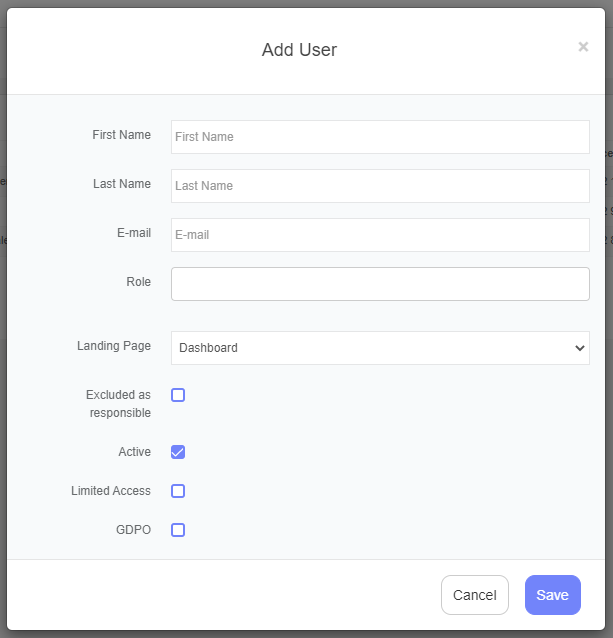
The Username field must contain the user's Microsoft 365 account name (for example, jane@company.com). If this is not entered correctly, the user will not be recognised at login and will be redirected to the access request page. After creating the user, assign them to one or more business units by navigating to Settings > Users and opening the specific user's profile.
Note: If you experience any problem in connection with creating users, e.g. a user cannot log in, contact PACTIUS Support.