
The Issues list gives you an overview of all issues across contracts, lets you filter by saved or standard searches, and allows you to open, edit, or delete any individual issue directly from the list. Access it by clicking the issues icon in the left-hand menu. Use the toggle in the upper left corner to switch between the two standard searches: All Issues and My Issues.
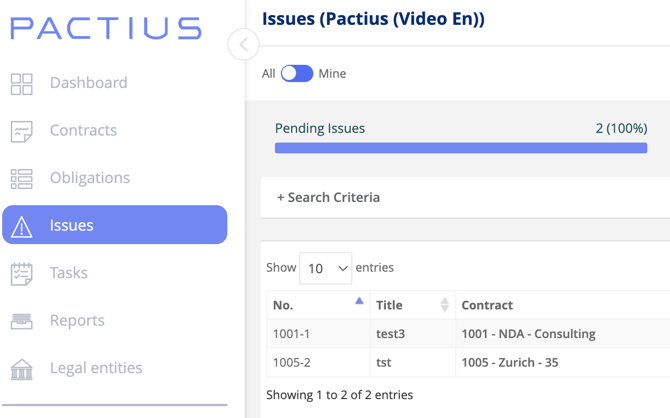
At the top, there is an overview of the status of all the issues that are on the list in the specific search. At the top of the list on the left, you can specify how many lines you want to have on each page
Note: By default, 10 lines per page are shown. However, this can be changed in the user setup.
At the top of the list on the right, you have a search field, where you can further limit your search by typing in a given text string.
Note: If you, for example, type "drift", only the rows with the text "drift" in one of the fields are displayed.
At the bottom, you can flip between the pages.
If you want to access an issue, simply click on the line in question, after which you will be taken to the issue's main page.
How do you search for issues?
By clicking on "+ Search criteria" at the top of the list of issues, the search criteria are opened. Here, you have the option of making a very specific search based on your own criteria. When you have made your own search, it is also possible to save your search. In this way, you can quickly repeat the search - see also user-defined searches.
Edit issue
Changes to an issue are made by clicking the "Edit" button at the top right of the issue's
main page. The following pop-up box appears:
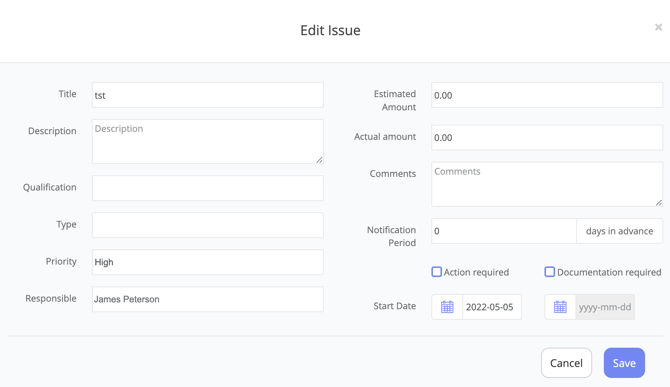
You can change most fields on an issue, including (but not limited to) the title, description, status, responsible party, and due date. When you have made your changes, click Save and you return to the main page of the issue.
Delete an issue
To delete an issue, click Delete in the upper right corner of the issue's main page. A confirmation pop-up window appears.
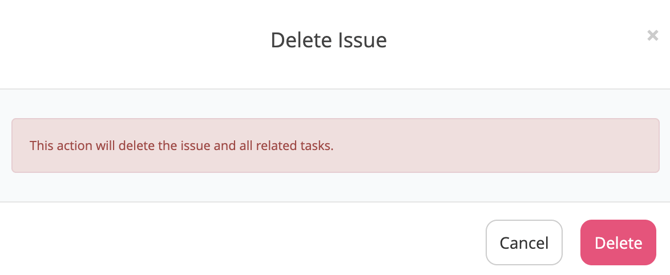
Note: When an issue is deleted, all underlying tasks and associated documents are also removed.