
This article explains how to edit, close, reopen, and delete obligations in dotlegal, including how to bulk-delete multiple obligations at once.
Edit obligationsChanges to an obligation are made by clicking on the "Edit" button at the top right of the obligation's main page. The following pop-up box appears:

You can edit most fields on the obligation. Note that some fields, such as the obligation type or contract association, may not be editable after creation. Once you have made your changes, click "Save" to return to the obligation's main page.
You can also recalculate tasks when editing an obligation. To trigger recalculation, change the occurrence, interval, or frequency, then click "OK" in the pop-up that appears (see image below):
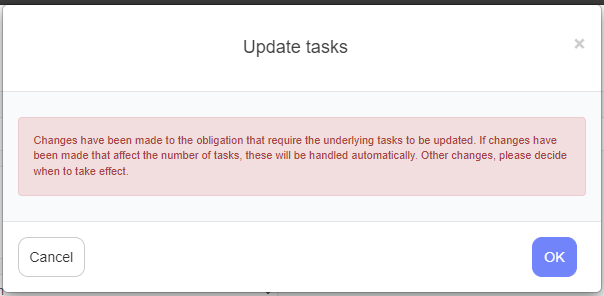
Note: The system does NOT recalculate tasks that have already been answered.
Close/Open an obligation
You can close an obligation by clicking on the "Close" button at the top right of the obligation's main page. When an obligation is closed, as a rule, it does not appear on lists in the system, just as no notifications are sent on the obligation.
You can reopen a closed obligation by clicking on the "Open" button at the top right of the obligation's main page.
Note: It is possible to include closed obligations in your searches by including closed obligations in the search criteria.
Delete an obligation
An obligation is deleted by clicking the "Delete" button in the top right corner of the obligation's main page where the following pop-up window appears:
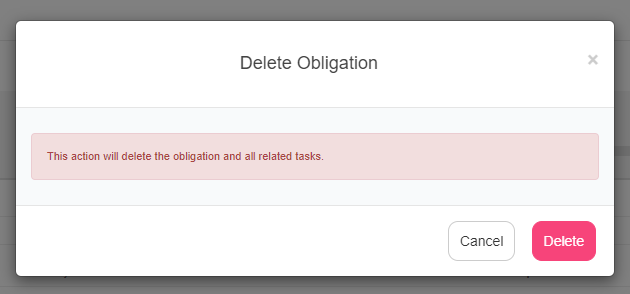
Click on "Delete" to confirm the deletion, after which the obligation is deleted and you return to the main page of the contract.
Note: When an obligation is deleted, all underlying tasks and associated documents are also deleted.
Delete Several Obligations at Once
To remove more than one obligation from a contract, click the edit (pencil) icon on the obligations list to enter selection mode. Tick boxes appear next to each obligation, and you can select them individually or all at once.
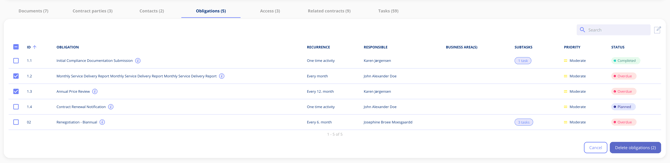
Selecting Delete obligations shows a summary of what is about to be removed, and this is where you decide how far the deletion goes:
- By default, the selected obligations and their upcoming tasks are deleted. Overdue, in progress and completed tasks are not affected and remain visible in the overview.
- Tick the box in the dialogue to delete the obligations permanently together with every associated task, whatever its status.
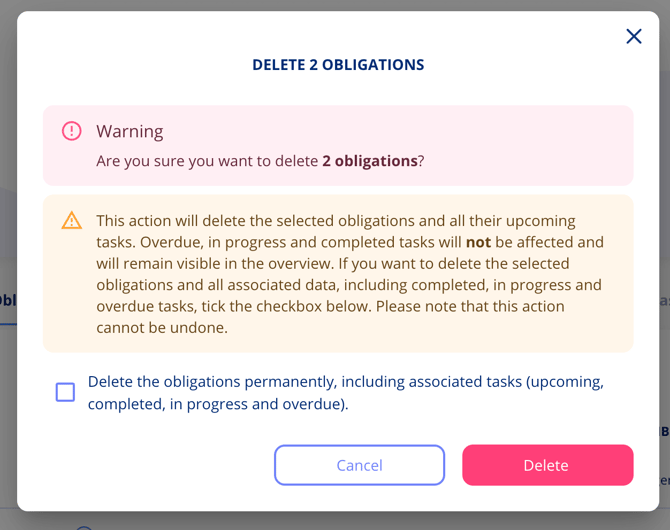
Note: Neither option can be undone and deleted data cannot be recovered, so review the summary carefully before confirming.