This ensures consistent obligation management and saves time on repetitive setup.
Setting Up Obligation Template Links- Go to Settings > Master Data > Obligation Templates.
- Select the obligation template you want to link, or create a new one.
- In the template configuration, link it to one or more contract templates.
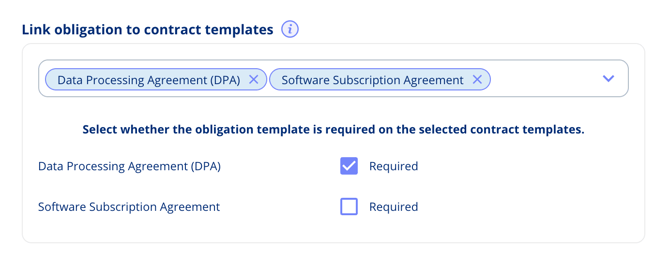
Set the obligation as either:
- Required — The obligation is mandatory and will always be included when creating a contract with this template.
- Optional — The obligation is available but not mandatory. Users can choose to include or skip it during contract creation.
Using Relative Dates
Obligation templates support relative dates tied to the contract's own timeline. This means obligation deadlines can automatically adjust based on when the contract starts or ends.
Examples:
- "Start 1 day after contract start date"
- "End 2 days after contract end date"
When a user fills in the contract dates during creation, the obligation dates are calculated automatically.
Creating a Contract with Linked Obligations
When you create a new contract using a template that has linked obligations:
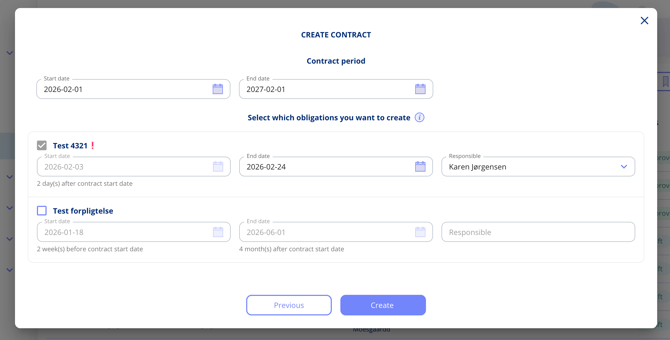
- The linked obligations appear automatically in the creation dialog.
- Dates are pre-calculated based on the contract dates you enter.
- Review and adjust all details as needed before finalising.
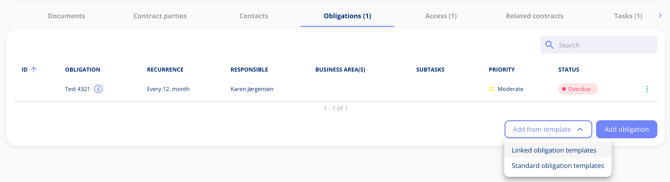
- Optional obligations that you skip during creation can be added later via the Add obligation button on the contract.