
Linking a policy to a task keeps your documentation consistent and ensures everyone works from the same up-to-date source.
How to link a policy to a task
- Open the task you want to document.
- In the documentation section, select Link policy.
- Choose from your existing policies listed under the Policies menu item.
- The linked policy appears in the task's documentation list — confirming the link was successful.
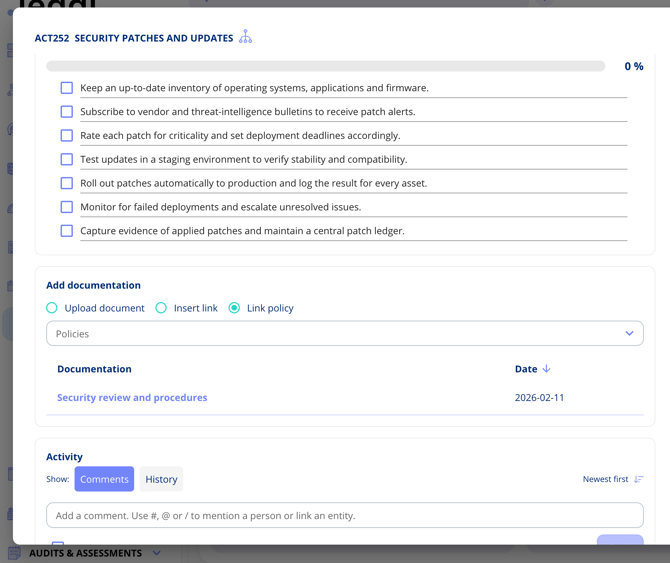
Viewing Linked Policies
Once a policy is linked:
- It appears in the task's documentation list alongside any uploaded files.
- Clicking the link takes you directly to the policy details page.
- The policy remains a live link — if the policy is updated, the task always references the latest version.
When to Use Policy Linking
Policy linking is particularly useful for:
- Compliance tasks — Reference the relevant compliance policy without duplicating it.
- Internal guidelines — Link to operational procedures that are already maintained in the platform.
- Audit preparation — Demonstrate that tasks are grounded in formal policies.
- Recurring tasks — Ensure that recurring or annual activities always point to the current version of a policy.