
Overview of obligations
When you click on the obligations icon in the top menu and then on one of the underlying possible standard searches, the List of obligations appears. The list contains an overview of obligations based on a specific search and can in principle be across contracts. Standard searches include "My Obligations" and "All Obligations" and the figure below shows "All Obligations":
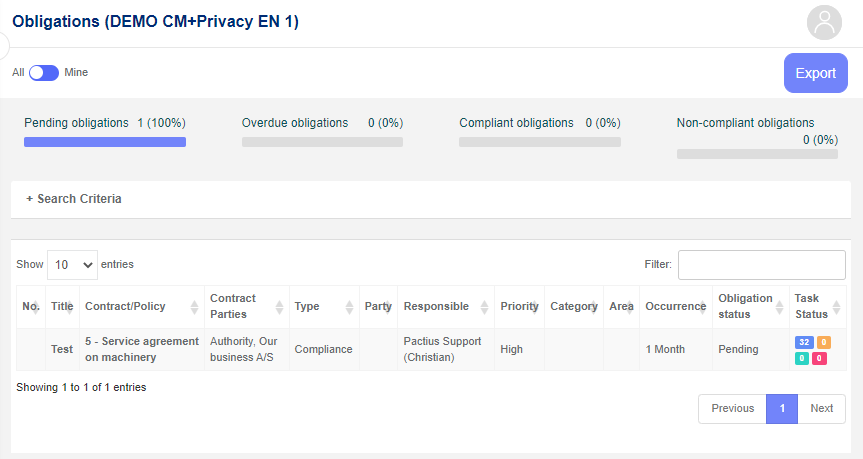
At the top, there is an overview of the status of all the obligations that are on the list in the specific search.
At the top of the list on the left, you can specify how many lines you want on each page
Note: By default, 10 rows per page are shown. You can change this in your user settings.
At the top of the list on the right, you have a search field where you can further narrow your search by typing in a given text string.
Note: If you, for example, type "drift", only the rows with the text "drift" in one of the fields are displayed.
At the bottom, you can switch back and forth between the pages.
If you want to access an obligation, click on either No. or title of the line in question after which you enter the main page of the obligation.
Show an obligation
The main page of an obligation contains an overview of all the information the obligation consists of.At the top, the obligation's number and its title appear, as well as an overview of the status of the tasks for which the specific obligation exists. The page is divided into four sections:
- The obligation's master data which consists of a number of standard fields.
- A list of the performance targets associated with the obligation (only for performance management - see list of performance goals)
- A list of all the tasks that are registered on the obligation and their status
- A list of all the issues that are registered on the obligation and their status (only for issue management - see issues)
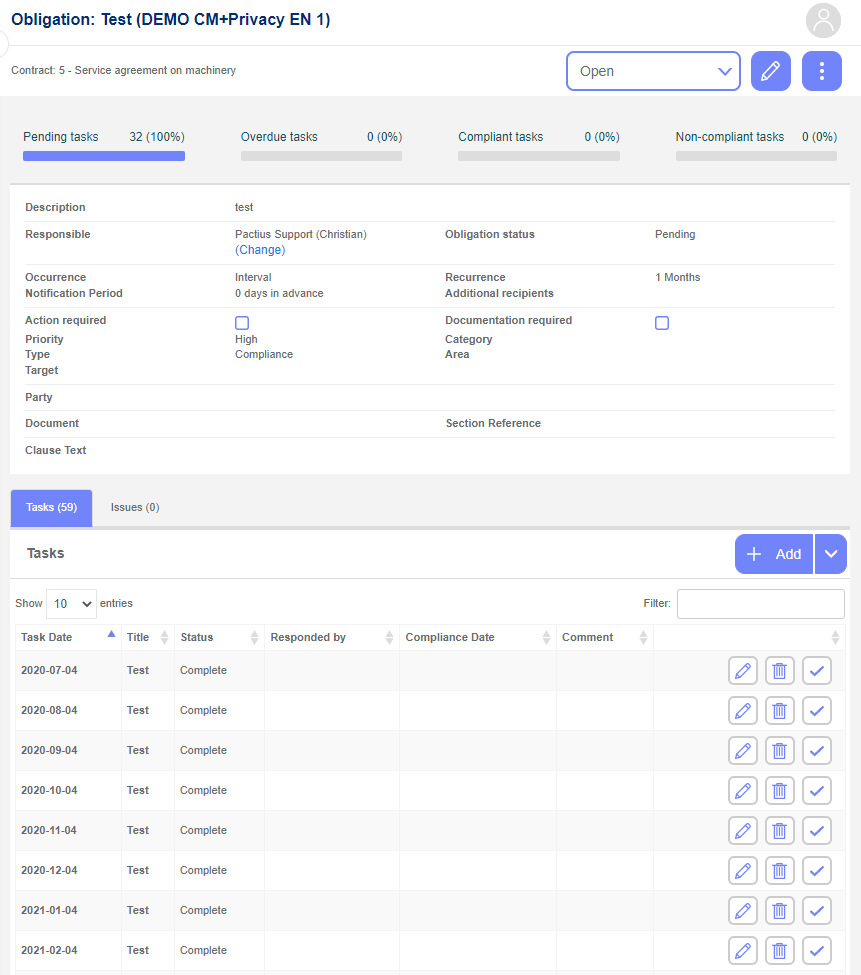
An obligation acts as the central record — or "container" — where all related tasks, issues, performance targets, and master data are stored and managed in one place.
To open a task, click on it in the task list — this takes you to the task's main page.
Tip: It is also possible to correct, delete and follow up on tasks directly from the task list by clicking respectively on the "pencil" icon, the "bin" icon or the "follow-up" icon to the right of the relevant performance target - see also task main page.
If you want to go back to the contract to which the Obligation relates, you can click on the contract's title in the "Breadcrumb" at the top of the screen (above the obligation's title).
Search for obligations
To build a custom search, click + Search Criteria at the top of the obligations list. This opens a criteria panel where you can define filters based on your specific needs. Once you've created a custom search, you can save it for quick reuse — see also: user-defined searches.