
Note: Administrative functions let you reassign responsibility for contracts, obligations, issues, and data processes in bulk — for example, when an employee leaves. Use the sections below to update the contract manager, obligation manager, business manager, or issue manager.
Update the contract manager
To move many contracts from one contract manager to another at once (for example, when an employee leaves), follow these steps: 1. Click Settings in the left menu, then click Update Contract Manager under Administrative Functions. 2. Select the user you want to move contracts from and the user you want to move contracts to, then click Get Contracts. A list of all contracts belonging to the source user is generated. 3. Mark the individual contracts you want to move on the left side, or select the top checkbox to mark all contracts. Optionally, check whether all associated obligations should also be moved at the same time. 4. Click Move Contracts. A confirmation pop-up appears. 5. Click Move Contracts again to confirm. A second pop-up confirms the move is complete. The marked contracts (and any associated obligations) now have the new contract manager assigned. Note: You cannot move contracts to a contract manager who does not already have access to the relevant business units. Such contracts are marked with an exclamation mark in the list.
Step 1
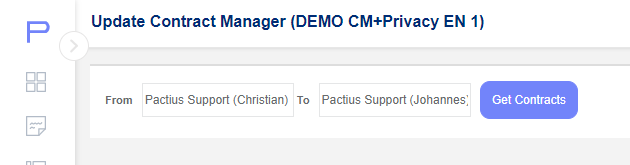
First, click on "Settings" in the left menu and then on "Update Contract Manager" under administrative functions. The following screen appears with "Update Contract Manager":
Step 2
Select which users you want to move contracts from and to respectively. Click on "Get Contracts".
A list of all the contracts belonging to the user from whom you want to move the contracts is now generated (in the case below it is just one contract):
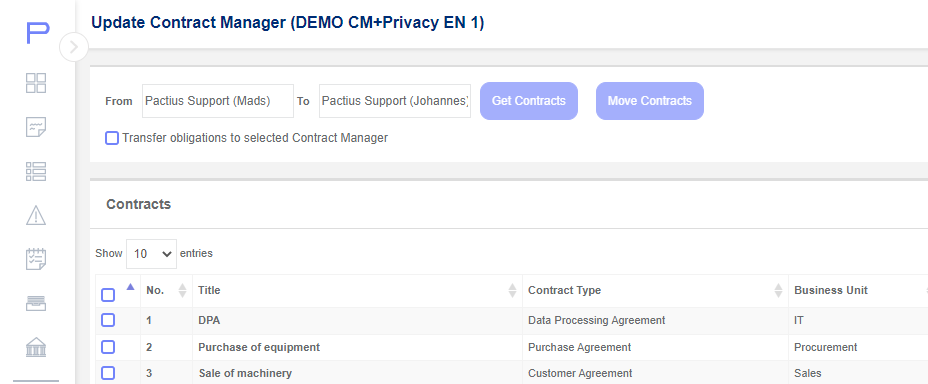
You can then mark the contracts you want to move on the left side or you can mark them all (top box on the left).
Note: It is not possible to move contracts to contract manager who does not already have access to the business units to which the contracts belong (marked with an exclamation mark in the list).
Note: You have the option to mark whether all associated obligations must also be moved at the same time.
When finished, click on "Move Contracts", after which a confirmation pop-up box will appear:
You then click "Move Contracts" to confirm the move, after which a pop-up box finally confirms the move:
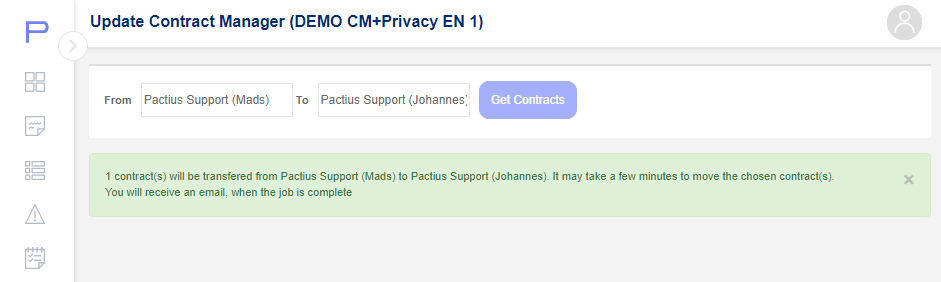
The marked contracts (and any associated obligations) have now changed contract manager.
Update obligation manager
To move many obligations from one obligation manager to another at once (for example, when an employee leaves), follow these steps:
1. Click the Settings icon in the left menu, then click Update Obligation Manager under Administrative Functions. The Update Obligation Manager screen appears.
2. Select the user you want to move obligations from and the user you want to move obligations to, then click Get Obligations. A list of all obligations belonging to the source user is generated.
3. Mark the individual obligations you want to move on the left side, or select the top checkbox to mark all obligations.
4. Click Move Obligations. A confirmation pop-up appears.
5. Click Move Obligations again to confirm. A second pop-up confirms the move is complete.
The marked obligations now have the new obligation manager assigned.
Note: You cannot move obligations to an obligation manager who does not already have access to the relevant business units. Such obligations are marked with an exclamation mark in the list.
First click on the "Settings" icon at the top of the menu and then "Update Obligation Manager" under the menu, after which the update obligation manager screen appears

Then select which Users you want to move obligations from and to respectively, after which click on "Get Obligations". A list of all the obligations belonging to the User from whom you want to move the obligations is now generated.
You can then mark the obligations you want to move on the left side or you can mark them all.
Note: It is not possible to move obligations to a contract manager who does not already have access to the business units to which obligations belong (marked with an exclamation mark in the list).
Update business manager
To move many contracts from one business manager to another at once (for example, when an employee leaves), follow these steps: 1. Click the Settings icon in the left menu, then click Update Business Manager under Administrative Functions. The Update Business Manager screen appears. 2. Select the user you want to move contracts from and the user you want to move contracts to, then click Get Contracts. A list of all contracts belonging to the source user is generated. 3. Mark the individual contracts you want to move on the left side, or select the top checkbox to mark all contracts. 4. Click Update Business Manager. A confirmation pop-up appears. 5. Click Update Business Manager again to confirm. A second pop-up confirms the move is complete. The marked contracts (and any associated obligations) now have the new business manager assigned. Note: You cannot move contracts to a business manager who does not already have access to the relevant business units. Such contracts are marked with an exclamation mark in the list. to another (e.g. if an employee quits) you can do this at once. First click on the "Settings" icon at the top of the menu and then "Update Business manager" under the menu, after which the update business manager screen will appear:
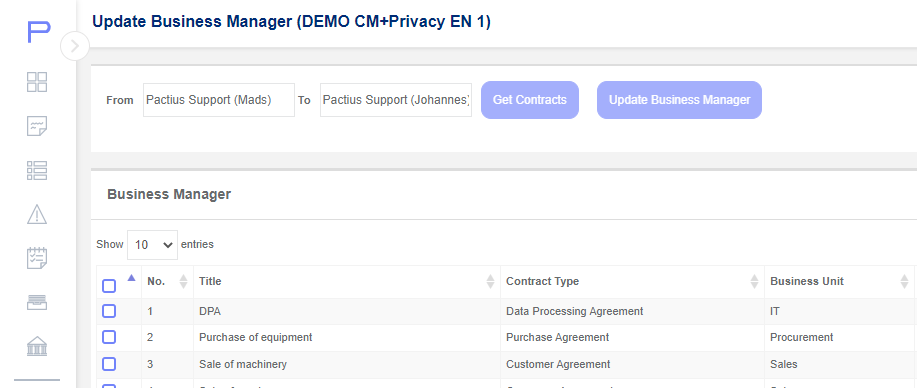
Then select which users you want to move contracts from and to respectively, after which click on "Get Contracts". A list of all the contracts belonging to the User from whom you want to move the contracts is now generated (in the case below it is just one contract):

You can then mark the contracts you want to move on the left side or you can mark them all (top box on the left).
Note: It is not possible to move contracts to a business manager who does not already have access to the business units to which the contracts belong (marked with an exclamation point in the list).
When finished, click on "Update Business Manager", after which a confirmation pop-up box will appear:
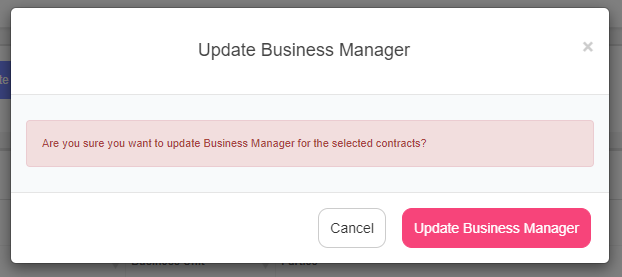
Then you click "Update Business Manager" to confirm the move, after which a pop-up box finally confirms the move:
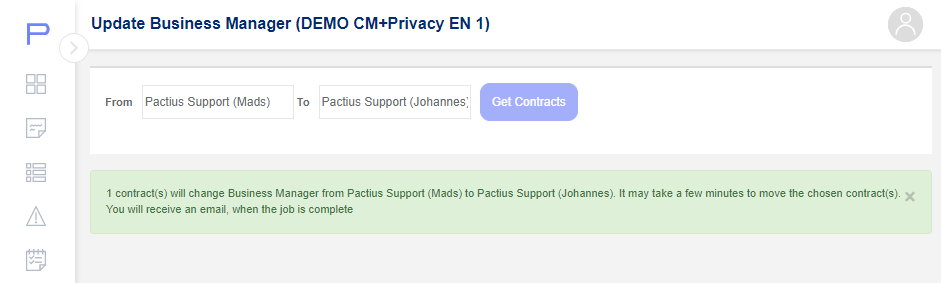
The marked contracts (as well as any associated obligations) have now changed business manager.
Update issue manager
To move many issues from one issue manager to another at once (for example, when an employee leaves), follow these steps:
1. Click the Settings icon in the left menu, then click Update Issue Manager under Administrative Functions. The Update Issue Manager screen appears.
2. Select the user you want to move issues from and the user you want to move issues to, then click Get Issues. A list of all issues belonging to the source user is generated.
3. Mark the individual issues you want to move on the left side, or select the top checkbox to mark all issues.
4. Click Move Issues. A confirmation pop-up appears.
5. Click Transfer Issues to confirm. A second pop-up confirms the move is complete.
The marked issues (and any associated obligations) now have the new issue manager assigned.
Note: You cannot move issues to an issue manager who does not already have access to the relevant business units. Such issues are marked with an exclamation mark in the list.
First click on the "Settings" icon at the top of the menu and then "update Issue manager" under the menu, after which the update Issue manager screen appears:
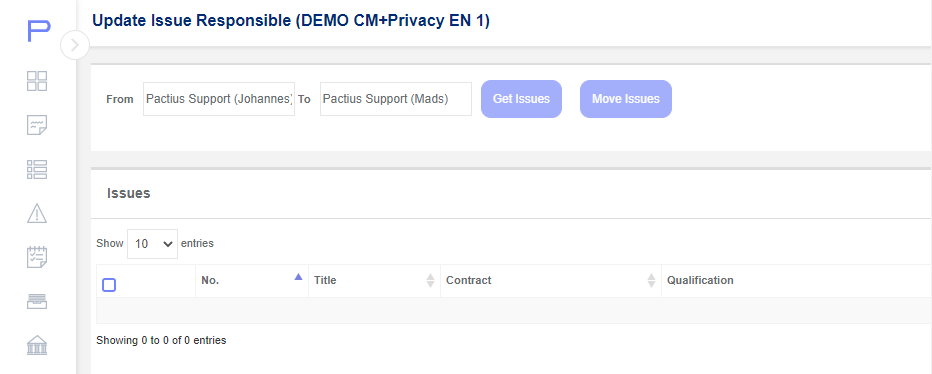
Then select which users you want to move Issues from and to respectively, after which click on "Get Issues". A list is now generated of all the issues that belong to the user from whom you want to move issues.
You can then mark the issues you want to move on the left side or you can mark them all.
Note: It is not possible to move issues to an issue manager who does not already have access to the business units to which the issues in question belong (marked with an exclamation point in the list).
Then you click "Transfer Issues" to confirm the move, after which a pop-up box finally confirms the move.
The marked issues (as well as any associated obligations) have now been changed to the issue manager.