
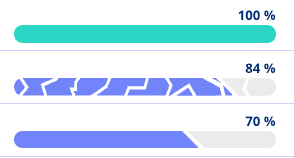
What does the progress bar show?
The progress bar displays a percentage based on how many required inputs are completed. A cracked bar indicates that validation is overdue, while 100% means all required fields are filled and recently validated.
What happens when a required field is skipped?
If you skip a required field, it is marked in red. You can still proceed, but your progress percentage will reflect what’s missing.
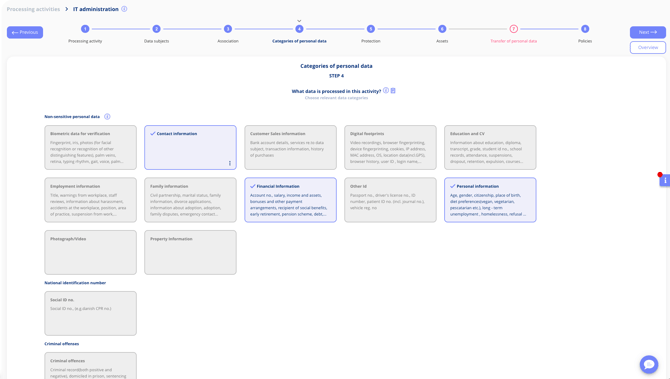
Tip: Use the flow bar to see which steps still need attention.
How do you validate a processing activity?
When ready, validate the activity by:
- Open the activity menu (top right).
- Click Validate.
- Confirm your review.
- Verify that the progress bar updates to 100% and the activity status changes to validated.
- Clicking Validate
- Confirming your review
This action is logged and maintains an auditable record.
How is ongoing compliance handled?
If legal requirements change, your platform updates automatically. This can affect which fields are required and what is considered valid. You will be notified and guided on necessary fixes.