
- Risk scores
- Visual matrix view
- Versioning to track changes over time
Risk Scores
Each scenario is scored based on likelihood × impact. Overall risk level is colour-coded (e.g. green/yellow/red).
Matrix View
View risks plotted in a 2D grid to quickly identify:
- High-priority risks
- Areas that are under control
- Risks to revisit
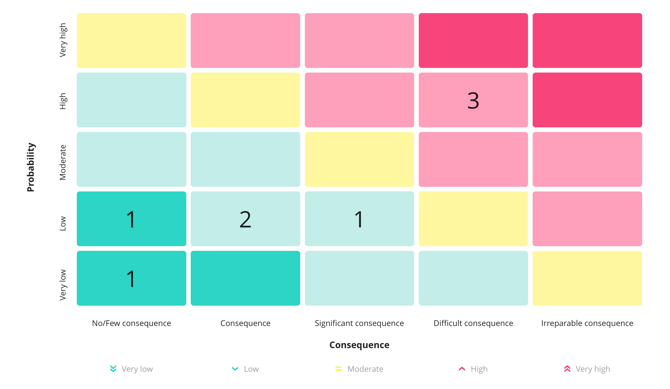
Use the matrix to prioritise your compliance efforts
Version History
Create a new version of an assessment when:
- Controls are added or updated
- Risk landscape changes
- Audit cycle requires periodic review

Create a new version
.png?width=670&height=512&name=riskversion2%20(1).png)
Select if you want to make a blank version or a copy. Give version a name and description.
Tip: You can make a new version as a copy of an existing version - if you just need to make a few updates.
Old versions that are not needed anymore can be deleted through Administration -> Master Data
Choosing the Active Version
You decide which risk version is shown across the platform, rather than always seeing the most recent one.
- Go to Settings > Master data > Risk Versions and select Edit on the version you want.
- Tick Current risk.
- Save.
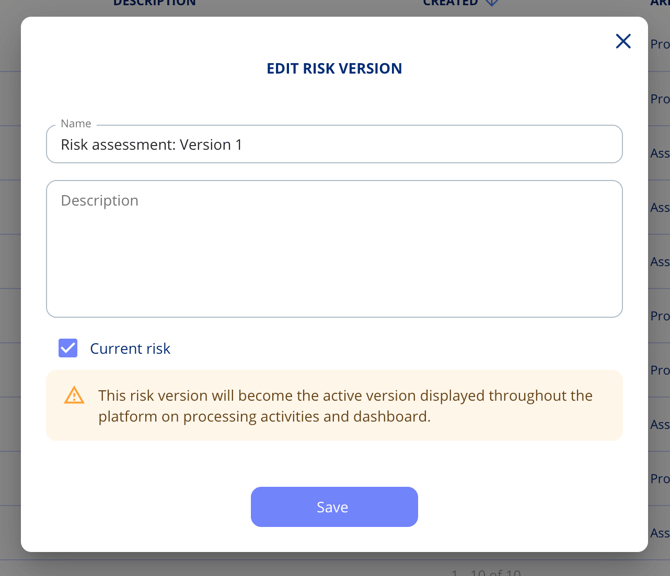
The version you mark as current is the one reflected on processing activities, assets and the dashboard. You can always see which version is active from the version dropdown on the Risk menu item.
This is useful when you are not ready to apply the latest assessment everywhere, or when you need to reference a specific version for reporting.