
To publish a policy, select Publish from the policy editor. Publishing creates a new version, generates a PDF automatically, and logs the change in the version history. Every change you make before publishing is tracked against the current draft.
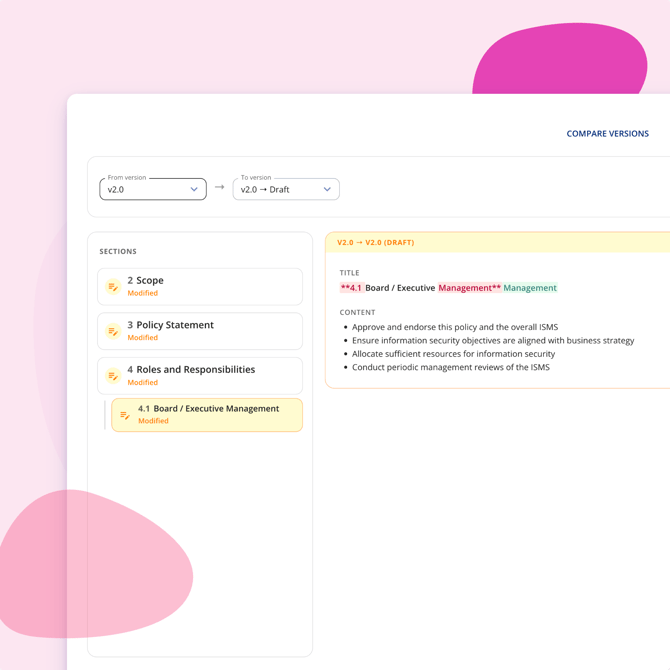
Review changes before publishing
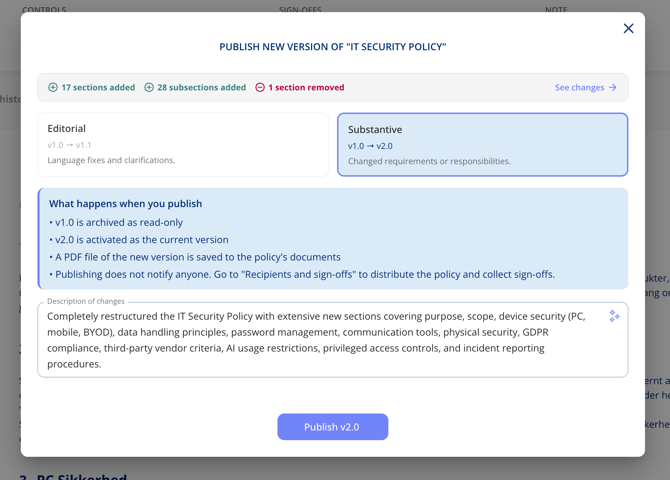
When you publish, the platform shows you a summary of what's changed since the last version: sections added, removed, or modified. You can review the full diff before confirming.
Editorial vs substantive updates
When publishing, you choose what kind of update it is. This determines how the version number changes.
- Editorial – language fixes and clarifications. The minor version number increases, for example
v1.0becomesv1.1. - Substantive – changed requirements or responsibilities. The major version number increases, for example
v1.0becomesv2.0.
You can also add a short description of what changed. This appears in the version history and makes it easier to understand the history of a policy at a glance.
What happens when you publish
Publishing a policy triggers three actions in sequence:
- A new version is created and the version number is incremented.
- A PDF is generated and automatically added under the Documents tab.
- The version is logged in the version history with the description you provided.
Version history
The Version history tab gives you a full log of every published version. For each version you can see:
- Published date
- Approver
- Description of changes
- Number of linked controls
- Recipients
- Sign-off progress
You can open any previous version to read the full content as it was at the time, and compare any two versions side by side or inline.