
Prerequisites
AI Quality Scan is a dotLegal feature that uses AI to compare your documents against a reference template and identify fulfilled, partially fulfilled, and missing compliance requirements.
- The AI Features add-on must be activated. See Introduction to AI Features for setup instructions.
- At least one AI Quality Scan template must be configured (see below).
Setting Up Quality Scan Templates
Before running a scan, you need to create reference templates that define the standard the AI will compare against.
1. Go to Settings > Master data > AI quality scan templates.
2. Click Create template.
3. Give the template a descriptive name (e.g., "Standard DPA Requirements" or "ISO 27001 Policy Checklist").
4. Upload the reference document that defines your requirements.
5. Click Save. The platform processes and stores the template for future comparisons.
Supported file types: PDF and DOCX files are accepted as reference documents.
Running an AI Quality Scan
AI Quality Scan is available wherever documents are stored in the platform — on contracts, processing activities, assets, incident logs, and policies.
1. Navigate to the document you want to scan.
2. Find the AI quality scan column in the documents tab, and click the AI icon. Alternatively, open the document's overflow menu (three dots) and select AI Quality Scan.
3. Choose which AI quality scan template to compare against.
4. Click Compare.
Understanding the Results
The scan produces a detailed report categorising each requirement from the template: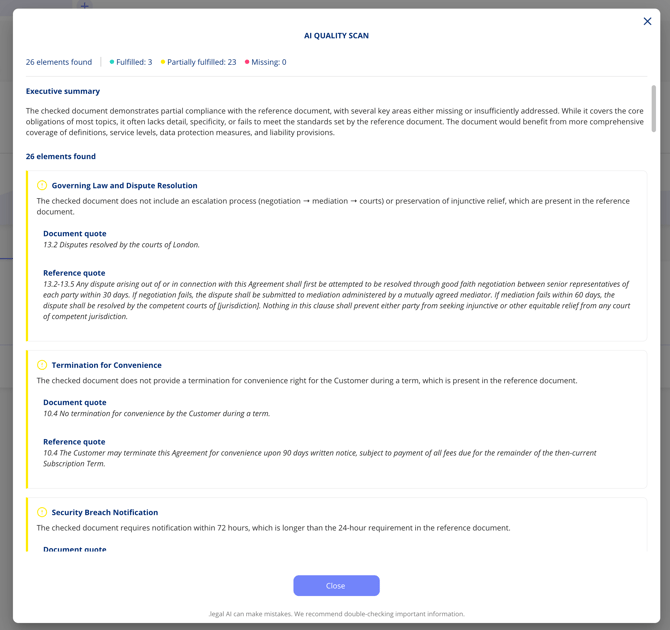
- Fulfilled — The requirement is met. The report shows the reference quote from the template and the corresponding text found in your document.
- Partially fulfilled — The requirement is addressed but may need further review. The report highlights what was found and what may be incomplete.
- Missing — The requirement is not covered in the document.
Each result includes improvement recommendations where relevant, suggesting specific changes to bring your document closer to the template standard.
Scanning Multiple Document Versions
You can run the quality scan on any version of a document. Use the version selector to switch between document versions and run comparisons on any previously unanalysed version.
Video walkthrough
Watch the full AI Quality Scan workflow:
Important Notes
- AI Quality Scan is designed to guide and assist. Results should be treated as a helpful starting point rather than a definitive assessment.
- Your data is processed by a European AI provider and is never used to train AI models.