
Deactivated roles remain in the system for data integrity but are hidden from the active view by default.
How to Deactivate a Role
- Go to Settings > User Management > Roles (or the equivalent roles section).
- Find the standard role you want to deactivate.
- Click the overflow menu (three dots) next to the role.
- Select Deactivate.
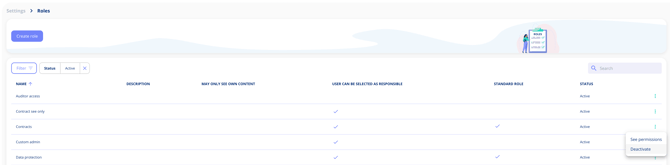
The role immediately disappears from the active roles list.
Viewing Deactivated Roles
Deactivated roles are hidden by default, but you can bring them back into view at any time:
- Open the filter options on the roles list.
- Toggle the filter to show deactivated roles.
- Deactivated roles appear alongside active roles, clearly marked.
Reactivating a Role
If you need a previously deactivated role again:
- Use the filter to show deactivated roles.
- Click the overflow menu next to the deactivated role.
- Select Reactivate.
The role returns to the active list and can be assigned to users again.
Important Notes
- Deactivating a role does not remove it from users who already have it assigned. Existing assignments remain intact.
- Deactivation only hides the role from the active list view — no data is lost.
- Only standard (built-in) roles can be deactivated this way. Custom roles can be edited or deleted.