
Document Search lets you search across all uploaded documents — including scanned files — using full-text search and advanced filters. Built-in OCR (Optical Character Recognition) automatically extracts text from scanned documents and images, making previously unsearchable content instantly discoverable.
Accessing Document Search
1. Click the Global search bar at the top of the platform.
2. Select the Documents tab.
3. Type your search query.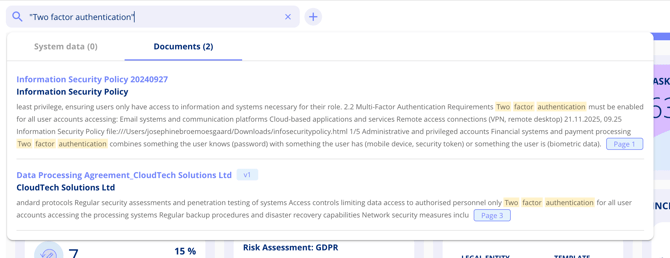
Search results display:
- Document title and version number
- Storage location (contract, policy, processing activity, etc.)
- A text snippet with the search term highlighted
- Page number reference
If a document contains multiple occurrences, you can expand to view up to the first 10 matches. For additional matches, open the full document.
Advanced Search Techniques
Prefix Search
Use an asterisk (*) to match word variations:
- `compli*` returns "compliance", "compliant", "complied"
Phrase Search
Use quotation marks to find an exact sequence of words:
- "data protection officer" returns only documents containing that exact phrase
Boolean Operators
Combine search terms using AND, OR, or NOT (or their shorthand symbols + and -):
- GDPR AND breach — documents containing both terms
- contract -template — documents containing "contract" but not "template"
- ISO OR NIST — documents containing either term
Advanced Filtering
The advanced document search interface provides additional filtering options:
Filter documents by:
- Area — Contract, policy, processing activity, asset, etc.
- Entity name — The specific record the document belongs to
- Responsible party — The person responsible for the entity
- Document status — Active, draft, or archived
- Document type — Appendix, data processor agreement, etc.
- Contract parties — Filter by associated parties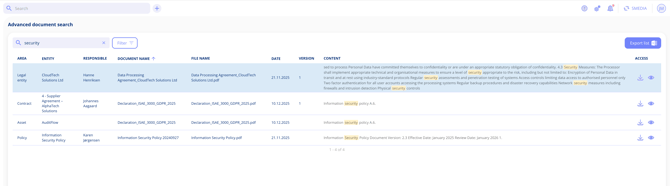
Search results display the following details for each document:
- Area
- Entity name
- Responsible party
- Document name
- Creation date
- Version number
- Content preview
From the results, you can preview or download documents directly without leaving the search view.
Exporting Search Results
Click the Export button after running a search. The platform sends you an email containing the exported data within a few minutes. The email is sent to the address associated with your account.
OCR Technology
The platform automatically applies OCR to scanned documents and images when they are uploaded. This means: - Scanned PDFs become fully searchable - Photographed documents are indexed and discoverable - No manual action is required — OCR runs in the background automatically Note: OCR processing may take a few moments for large files. Once complete, the document will appear in search results.
Document Preview
You can preview documents directly from search results without downloading them. Supported preview formats include: - PDF files - Word documents (.docx) - Images (JPEG, PNG) Use the arrow keys to cycle through multiple documents without closing the preview window.
Note: If a document format is not supported for preview, you can still download it directly from the search results.
Related Articles
- Contract Documents and Counterparties
- Advanced Document Search Filters