
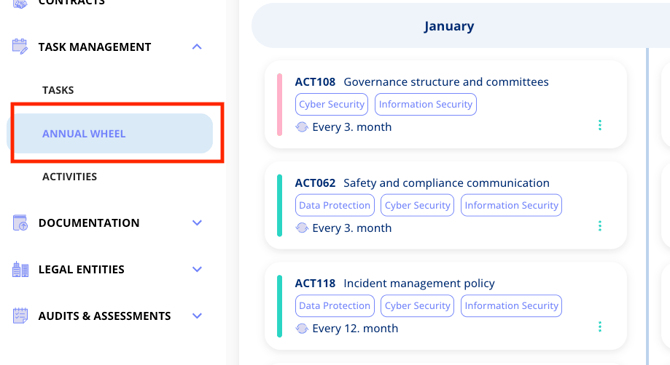
Go to Annual Wheel in your menu and find the activity you want to update.
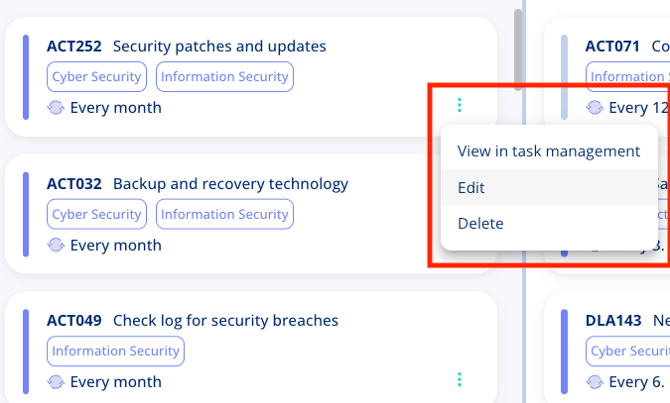
Click the three green dots on the activity and select Edit.
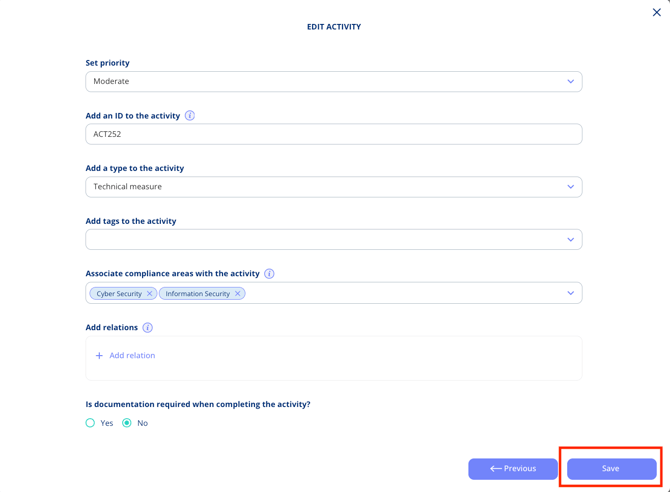
Work through the flow and update any information that needs changing, such as the deadline. Continue through the entire flow until you can select Save.
Please note: if you edit an activity that has tasks already marked as Overdue or Ongoing, those tasks won't be updated. The template only applies changes to future tasks.
Is a task still showing as overdue after you’ve edited the activity? Here’s how to fix it.
Tip: Before editing the activity, it's worth moving any Ongoing tasks back to Planned. This way their template will be updated too, and any work you've already done on those tasks won't be lost.