
Description and Subtasks
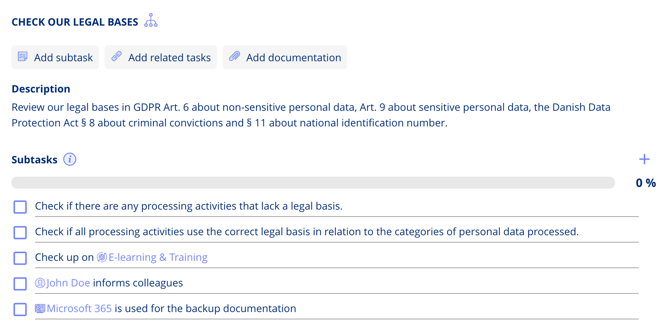
You can add a detailed description to a task and create subtasks (checklist items) for step-by-step guidance or internal control. Subtasks can be entered manually or pre-filled from annual activities.
- Add a detailed description to explain the task
- Create subtasks (checklist items) for guidance or internal control
- Subtasks can be added manually or pre-filled from annual activities
Comments
Use comments to communicate and share updates directly inside a task. You can tag team members with @mentions to collaborate without leaving the task.
- Use comments for communication and updates
- Tag team members
- Collaborate directly in the task
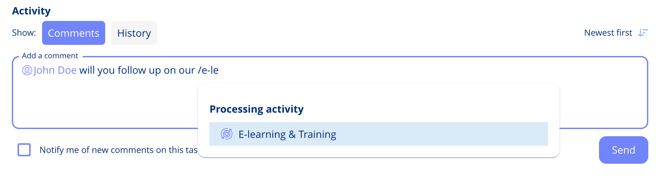
Tip: Comments stay attached to the task and create a clear audit trail.
Relate a Task to Other Entities
The relations box on a task shows what the task is linked to, and you can add links yourself. Select Add relation and choose the entity — a processing activity, asset, risk, policy or any other supported type.
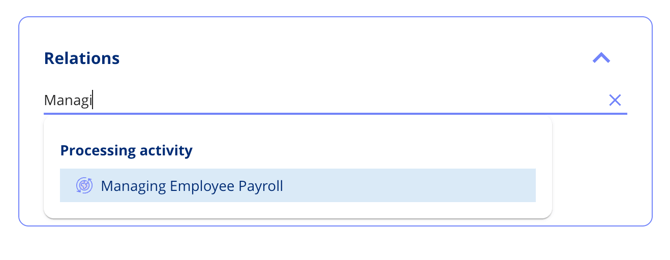
Relations are also created for you: tag an entity in a comment on the task and it is added to the relations section automatically, so the trail stays complete without extra work.
Download a Task
A task can be downloaded as a single zip file containing a PDF summary — title, description, due dates, assigned entities and metadata — together with every document attached to it.
- Open the task.
- Select the overflow menu in the top-right corner.
- Choose Download.
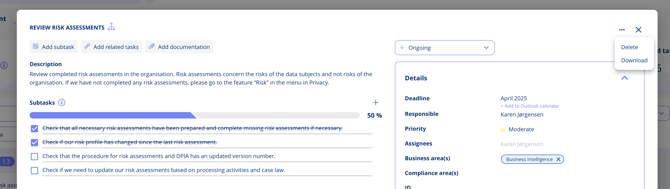
This is the quickest way to hand documentation to an external stakeholder, save it offline, or include it in an audit.