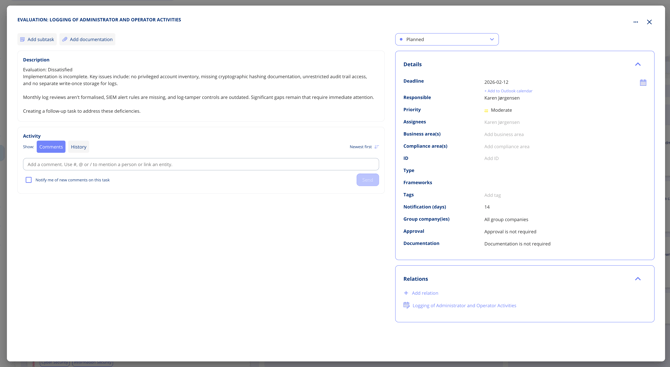
Key Metadata
- Responsible user
- Business area
- Task tags
- Approval requirement (yes/no)
- Documentation required (yes/no)
- Linked compliance area
.png?width=670&height=531&name=task-overview%20(1).png)
Tip: Fields are fully editable for one-off tasks, but partially locked if created via the annual wheel.
What the Details Panel Holds
Alongside the fields above, the details panel on a task shows the deadline (with the option to add it to your Outlook calendar), assignees, compliance area, an ID, notification in days, group companies, and whether approval and documentation are required.
Create a Follow-Up Task from an Evaluation
When you evaluate a task you often spot something that needs acting on. You can create that follow-up straight from the evaluation box on the task.
Select Create evaluation task in the evaluation section. A new ad hoc task is created with these fields already filled in:
- Name — "Evaluation: [name of the primary task]"
- Description — the evaluation and the text from the evaluation section
- Responsible — whoever is responsible for the primary task
- Deadline — 14 days from creation
- Legal entities — inherited from the primary task
- Relation — linked to the primary task, with the relations box already expanded
It is created with standard settings: moderate priority, 14-day notification, approval not required and documentation not required. All of it can be changed afterwards.