
Adding recipients one at a time is slow when the same assessment or policy has to reach a whole department. Instead, select a business area and everyone in it is added in one go.
Before you start
Recipients are grouped by the business area on their contact record, so give a contact a business area when you create them. Contacts without one will not be picked up by a business area selection and have to be added individually.
Add recipients from a business area
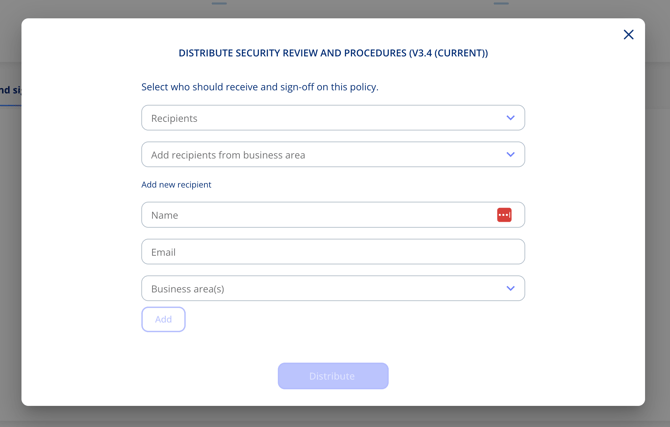
- Start sending the internal assessment, or open the distribute dialogue on the policy.
- Use Add recipients from business area and select the business area.
- Every contact in that business area is added to the recipient list.
- Review the full list of recipients, remove anyone who should not receive it, then send or distribute.
Important notes
- You always see the complete list of recipients before anything is sent, so a business area selection can be checked and corrected first.
- The same field is available whether you are sending an internal assessment or distributing a policy for sign-off.
- You can still add a brand new recipient by hand in the same dialogue, including their business area.