
Internal assessments are organised in three lists: Assessments, Assessment groups and Public assessments. Use an assessment group when the same assessment should go to more than one contact — an awareness questionnaire across a department, for example. Assessment groups work much the same way audit groups already do for external audits.
Where to find assessment groups
Go to Internal assessments under Audits and Assessments and open the Assessment groups tab.
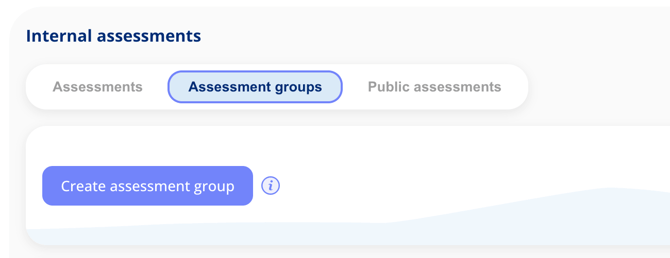
Create an assessment group
- Select Create assessment group. This creates a draft.
- Give the group a name, add a description and choose the assessment template. Only templates with the status "Active" appear in the dropdown.
- Choose which contacts should receive the assessment. You can pick them individually, or add everyone in a business area at once.
- Set the responsible person and the deadline for answering.
- Send the group.
Follow up on a group
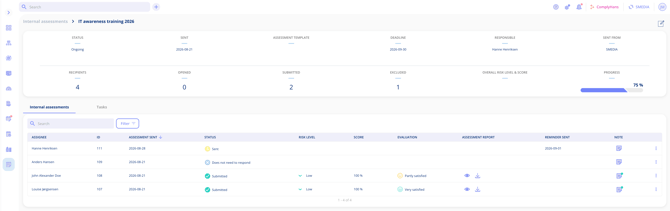
Open a group to see it as a whole: how many recipients it went to, how many have opened and submitted it, how many are excluded, the overall risk level and score, and the total progress. The list underneath shows each assignee separately, with their status, risk level, score, evaluation, assessment report and whether a reminder has been sent.
Important notes
- A recipient who does not need to answer can be excluded without affecting the group's progress.
- Contacts must exist before you can add them. Once a contact is created, there is no need to create them again.
- Use Assessments to send to a single contact, and Public assessments when respondents should get started from a link without being contacts first.