
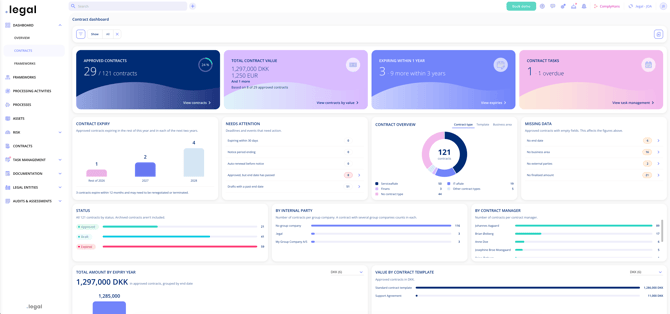
The Contract dashboard answers the questions you used to answer by filtering lists and adding up figures by hand: which contracts expire soon, which notice periods are running out, and how much you are committed to. It comes with the Contract Management module.
How do I open the Contract dashboard?
- Open Dashboard in the side menu.
- Choose Contracts.
Overview in the same sub-menu is the compliance dashboard on your front page. See Understanding the Dashboard.
Which contracts are counted?
The key figures, the expiry chart and the value widgets count approved contracts. Archived contracts are not counted. The dashboard only ever shows the contracts you have access to.
The key figures

- Approved contracts: how many of your contracts are approved, as a number and as a percentage.
- Total contract value: the value of your approved contracts, and how many of them it is based on. See Choose Which Fields Make Up Contract Value.
- Expiring within 1 year: approved contracts that end within a year, plus how many more end within three years.
- Contract tasks: tasks on your contracts that are not completed and are overdue or due within the next 30 days.
Hover over a card to see exactly what it counts. Click it to open the contract list or task management with the filter already applied.
Deadlines and events that need action
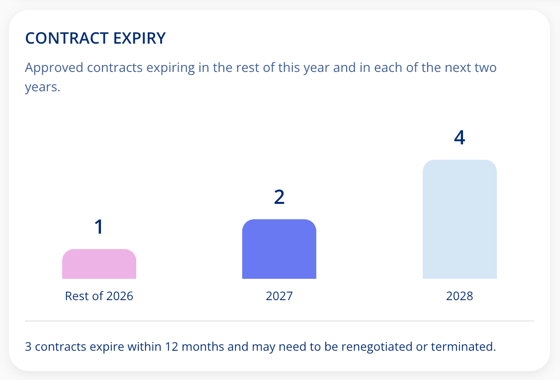
Contract expiry shows how many approved contracts end in the rest of this year and in each of the next two years.
Needs attention counts:
- contracts expiring within 30 days
- notice periods that are about to end
- contracts that will auto-renew before you have given notice
- approved contracts whose end date has passed
- drafts with an end date in the past
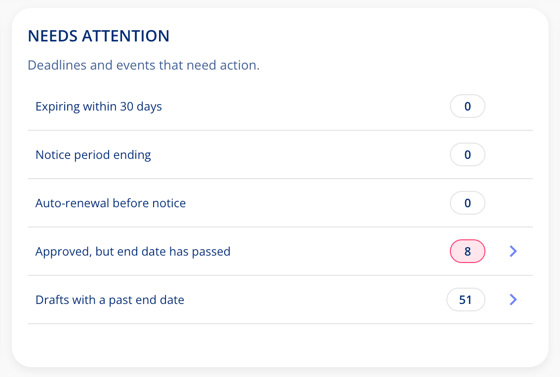
Click a line to open a filtered list of those contracts. Further down, Upcoming expiries lists the approved contracts that end within the next 90 days.
Your portfolio and your data
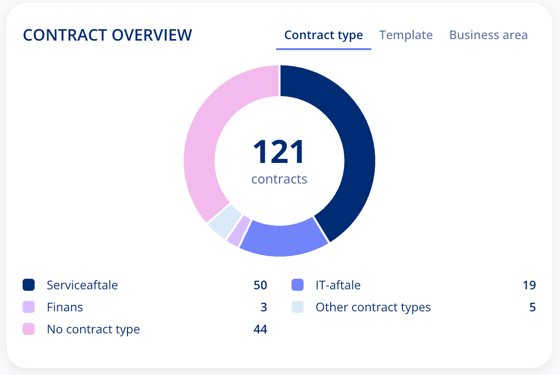
Contract overview breaks your contracts down by contract type, template or business area. Three smaller widgets show them by status, by group company and by contract manager. A contract with several group companies counts once for each.

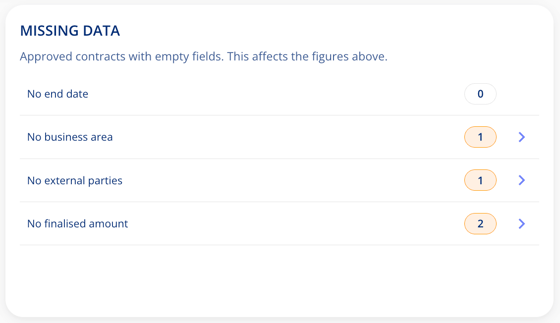
Missing data lists approved contracts with no end date, no business area, no external parties or no finalised amount. Click a line to open those contracts and fill in the gaps. The figures on the dashboard become more accurate as you do.
Contract value by year and by template
Total amount by expiry year shows the value of your approved contracts grouped by the year they end. Value by contract template shows how the value is spread across your templates. Amounts in different currencies are kept apart. Use the currency picker in each widget to switch currency.

Contract tasks
At the bottom of the page, Contract tasks lists the tasks on your contracts, with overdue ones marked, and links to task management.

Filtering and exporting
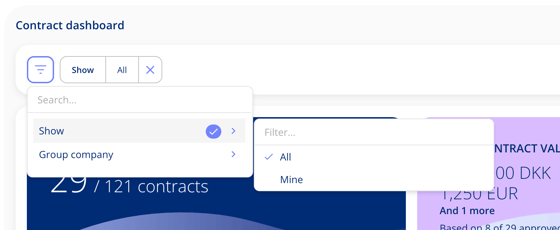
- Click the filter icon at the top of the dashboard.
- Under Show, choose All or Mine.
- Optionally, add a Group company filter.
To export, click the download icon. Add a note if you want one, and it appears on the first page of the PDF report.
Important notes
- The widgets are fixed. You cannot add, remove or rearrange them.
- A Frameworks dashboard is planned.