
You can now create your own asset templates, just as you can for contracts. Templates let you define which steps and input fields appear when a new asset is registered, so every record follows a consistent structure.
Setting up a template
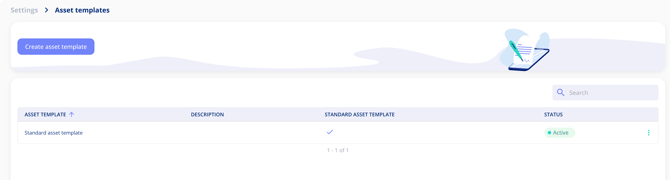
Go to Settings > Asset Templates. A standard template is available out of the box, covering all the default fields used on assets. You can use it as a starting point or create your own from scratch.
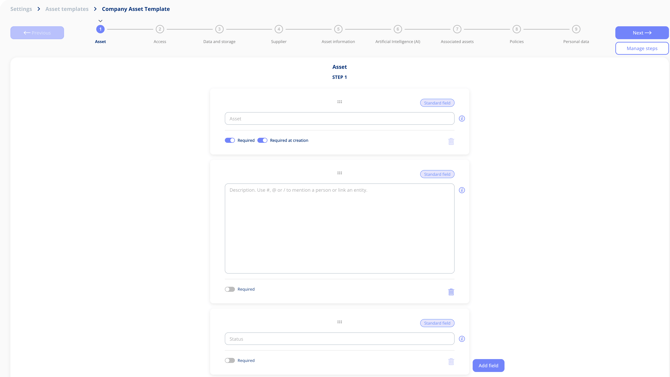
Within a template, you can:
- Reorder steps
- Remove fields you do not need
- Add fields back at any time
- Include custom fields alongside standard ones
- Drag custom fields into any position
Two steps that cannot be removed
Every template must include the Assets step (which holds the core record information) and the Access step (which controls who can see the asset). These two steps are required and cannot be removed.
Selecting a template when creating an asset
When you create a new asset, you will be prompted to select a template. The asset is then set up based on the template you chose, including any custom fields and step order you have configured.
Add-on required
Asset templates and custom fields are part of the Templates & Custom Fields add-on, which previously covered contracts only. The add-on now extends to assets, with processing activities to follow.