
This article explains how to create and edit security measures in the Privacy module. Security measures are part of the master data package and can be applied to processing activities and systems. They can optionally be marked as global, automatically applying them to all current and future processing activities and systems. A video walkthrough is also available below.
How do you create a security measure in Privacy?
To create a security measure, navigate to Settings in the left menu and follow the steps below.
- On the Settings page, click Visit master data in the Manage master data box.
- In the master data overview, click Security measures in the list.
- On the Security measures page, review the standard security measures already included in Privacy, then click Create security measure in the top-left corner.
- Fill out the fields in the pop-up window that appears, then click Create to save the new security measure.
Tip: Unlike other master data, security measures include an extra option — you can mark a security measure as global.
Note: A global security measure is automatically applied to all current and future processing activities and systems.
Security measures can be put on a processing activity as well as on a system.
You can get an overview of the security measures in "Settings" in the left menu.
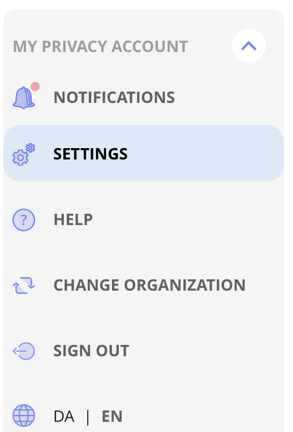
Step 1
Now, you are on the Settings page. Click on "Visit master data" which you find in the box "Manage master data".
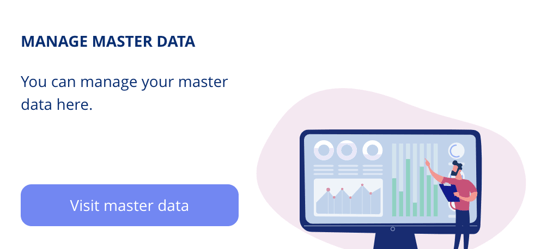
Step 2
Now, you can see an overview of your master data. Click on "Security measures" on the list.
Step 3
You are now on the page with security measures. Here, you can see a list of the standard security measures that are already included in Privacy.
You also have the opportunity to create your own security measures. Click on "Create security measure" at the top left corner.
Step 4
The following pop up-window appears in which you can create the security measure. When you have filled out the fields, click on "Create" to create the security measure.
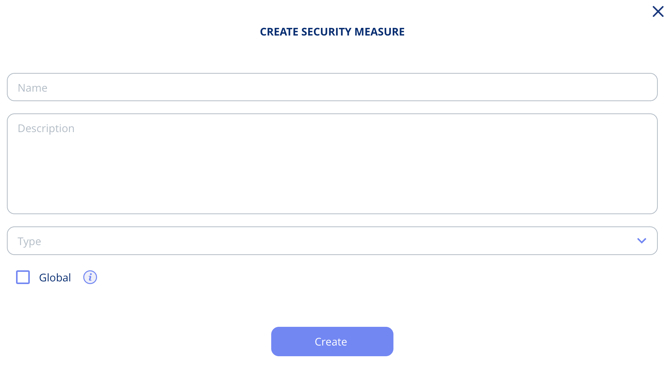
Tip: Unlike other master data, there is some extra functionality to the security measures. You can mark a security measure as a global security measure.
Note: A global security measure means that the security measure in question will be put on all current and future processing activities and systems.
How do you edit a security measure in Privacy?
Step 1
To edit a security measure — for example, to mark it as global so it applies to all processing activities — navigate to Settings in the left menu, click Visit master data in the Manage master data box, then click Security measures in the list. Follow the steps below.
- Locate the security measure you want to edit, open its submenu, and click Edit.
- In the pop-up window, check the Global checkbox. Business area selection boxes will appear; all business areas are selected by default.
- To deselect a specific business area, click on that business area in the list.
- Click Save to apply your changes.
Tip: Marking a security measure as global automatically adds it to all future documentation in Privacy, eliminating the need to manually apply the same setting to each processing activity.

Step 2
The following pop-up window now appears where you can check "Global". When you have ticked the field, boxes with the business areas that the security measure will be associated with, appear.
As a basis, all business areas are chosen. If you want to deselect a business area, click on the business area you want to deselect.
Click on "Save" to save your changes in Privacy.
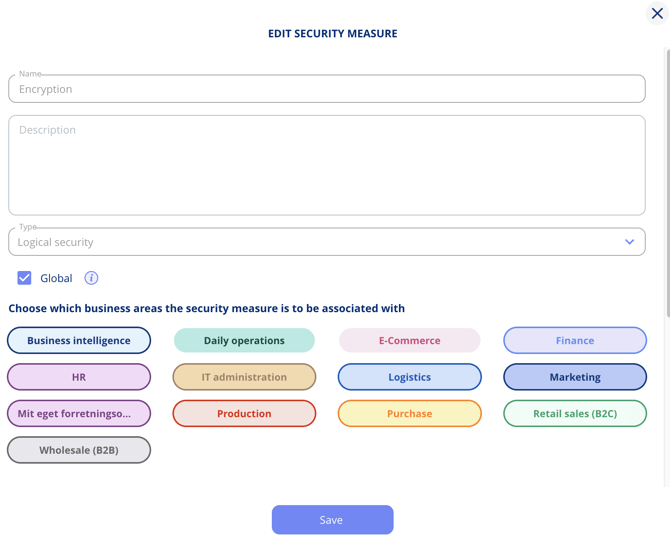
Tip: If you have added that a security measure is global, the security measure in question will be added to your future documentation in Privacy. In this way, you are free of choosing the same setting on all the processing activities you have made and will make in the future.