
The asset overview has been redesigned to match the experience on contracts. It now includes new columns, advanced filtering, custom views, and two new tabs on the asset detail view.
New columns in the asset list
The standard asset list now includes the following columns:
- ID
- Asset
- Asset Template
- Business Area
- Responsible
- Supplier
- Status
- Risk
Every asset now gets an auto-generated ID when it is created, giving you an extra way to identify and reference records.
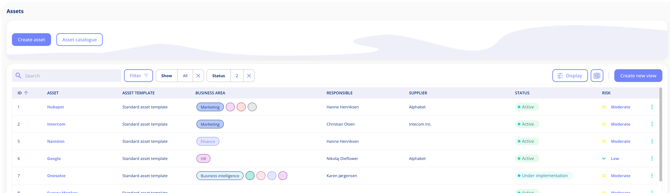
Filtering, sorting, and custom views
You can now filter, sort, and choose which columns to display in the asset overview. Custom views can be saved and returned to later. If you update a view, you can save it as a new one or overwrite the existing one.
Custom views require the Custom Lists add-on.
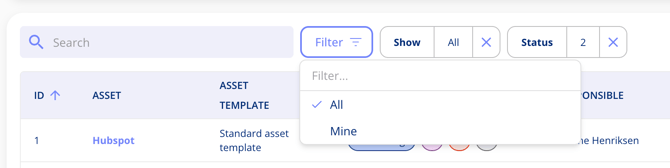
The All/Mine filter
The All/Mine toggle has been replaced with a Show filter in the list itself. By default, all assets are shown. Switch to "Mine" to see only assets where you are the responsible person. All filtering is now in one place.
Two new tabs have been added at the bottom of the asset detail view.
The Suppliers tab shows the legal entities linked to the asset, including any subcontractors connected to your suppliers.
The Processing Activities tab lists which processing activities the asset is associated with, along with the responsible person, risk score, and business area for each one.