
Legal entity templates work like the templates you know from contracts and assets. A template decides which steps and fields a legal entity has, and which of those fields must be filled in, so suppliers, customers and group companies can each be documented in the way that suits them.
Before you start
Creating your own templates requires the Templates and Custom Fields add-on. The Standard legal entity template is always available.
If a template needs fields of your own, create them first. See Custom Input Fields for Legal Entities.
Create a template
- Go to Settings > Legal entity templates.
- Select Create legal entity template.
- Give the template a name, for example Supplier, and optionally a description.
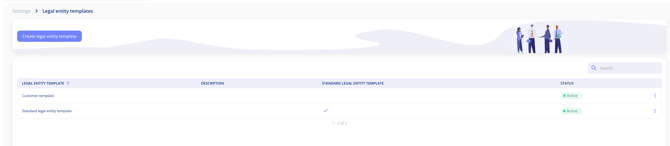
The list shows each template with its description and status. The standard template is marked with a check mark in the Standard legal entity template column.
Set up the steps and fields
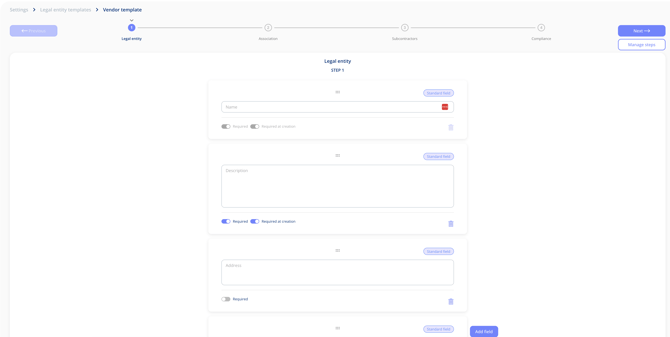
A template has the same four steps as a legal entity: Legal entity, Association, Subcontractors and Compliance.
- Adapt the steps: select Manage steps in the top right corner.
- Add a field: select Add field and pick a standard or custom field.
- Change the order: drag a field to a new position in the step.
- Remove a field: select the bin icon on the field.
Make fields required
- Required marks a field as one that must be filled in on the legal entity.
- Required at creation means the field must be filled in when the legal entity is created, so the information is there from the start. Only some fields have this toggle.
A few standard fields, such as Name, are mandatory. Their toggles are locked and they cannot be removed.
Use a template
When you create a legal entity under Legal entities > External, choose the template in the Legal entity template field alongside the name and country. The legal entity is then set up with the steps, fields and requirements from that template.
.png?width=456&name=Create%20from%20template%20(1).png)
Important notes
- Legal entity templates have no access step. Access to legal entities works as before: anyone whose role allows them to manage legal entities can see all of them.