A contract template decides which steps a contract goes through and which fields are filled in along the way. You can change a template whenever your needs change: add or remove steps, add your own fields, and decide which fields must be filled in.
Open a contract template
- Go to Settings.
- Under Templates and custom fields, select Contract templates.
- Open the template you want to change. To start a new one, select Create contract template and give it a name and, optionally, a description.
A new template starts with a predefined set of steps and fields, which you can change as described below. If you need a field that does not exist yet, create it first under Visit input fields. See Create custom input fields to contract templates.
Manage steps
Select Manage steps in the top right corner of the template.
- Add a step: select Add step to template, enter a name and select Create. New steps are added at the end of the flow.
- Change the order: drag a step to a new position in the list.
- Rename a step: open the menu (three dots) on the step and select Edit.
- Delete a step: open the menu on the step and select Delete. See what this does to existing contracts below.
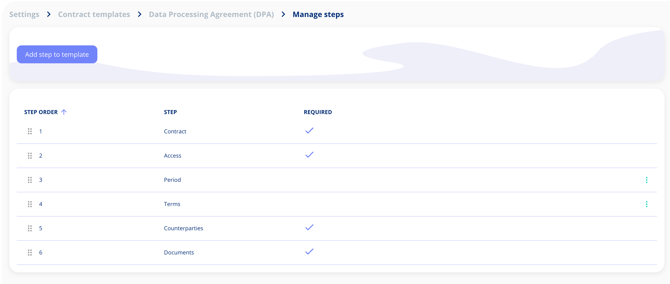
The steps Contract, Access, Counterparties and Documents are required. They are marked with a check mark and cannot be edited, hidden or deleted, but you can still change the fields inside them.
Manage the fields in a step
Go back to the template using the breadcrumb at the top. Each step shows its fields, and each field is labelled either Standard field or Custom field.
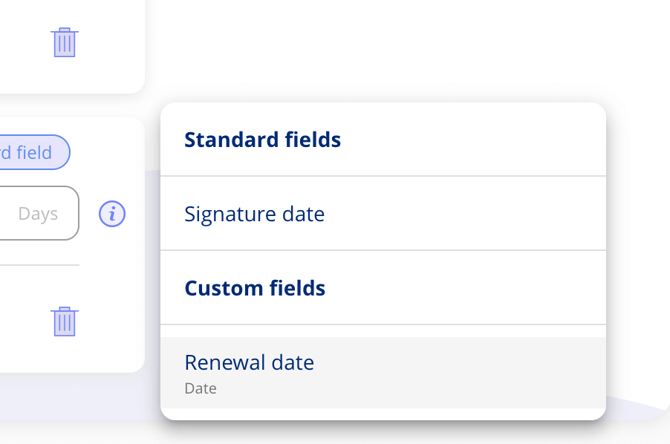
- Add a field: select Add field under the step and pick from your custom fields, or from standard fields you have removed earlier. New fields are placed at the bottom of the step.
- Change the order: drag a field to a new position within the step.
- Remove a field: select the bin icon on the field.
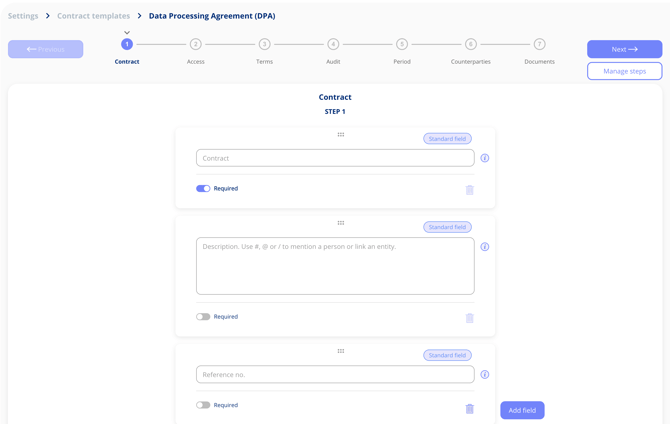
Some standard fields, such as the contract name, are mandatory. They cannot be removed, and their Required toggle is locked.
Make a field required
Each field has two toggles:
- Required: the field is highlighted in red with a warning if the user moves on to the next step without filling it in. The user can still continue through the flow.
- Required at creation: the field is shown in the dialogue where the contract is created, and the contract cannot be created until it is filled in.
Read more in Required Fields on Contract Templates.
Other settings on a template
- Automatic renewal: enable auto-renewal on the end date field, so contracts extend themselves when they expire.
- Calculated fields: add a field that adds up other amount fields on the contract.
- Linked obligations: obligations that are added automatically when a contract is created from the template. These are set up from the obligation template, not from the contract template.
What happens to existing contracts
Contracts stay linked to the template they use, so some changes also reach contracts that already exist.
- If you delete a step, it is removed from every contract that uses the template. The data in its fields is kept, and appears again if you add those fields to another step.
- If you delete a single step, the data on current contracts are still saved. So if you add the field again on a later point, the data on contracts will be shown again.
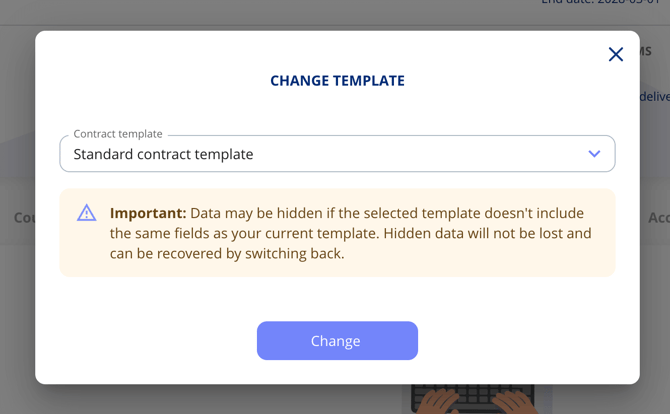
You can also move a single contract to a different template. Fields the new template does not include are hidden, not deleted, and they come back if you switch to the previous template.